Buying Guides
HP Laptops: Pros and Cons From a Repair Shop
HP ships more laptop models than almost any other brand, so the logo on the lid tells you very little by itself. A Stream and a ZBook share a badge and almost nothing else. The useful question is never whether HP makes good laptops. It is which HP family you are holding, and how that family behaves after a couple of years of daily use. The second part is what we see, and it shapes what follows.
Start with the family, not the badge
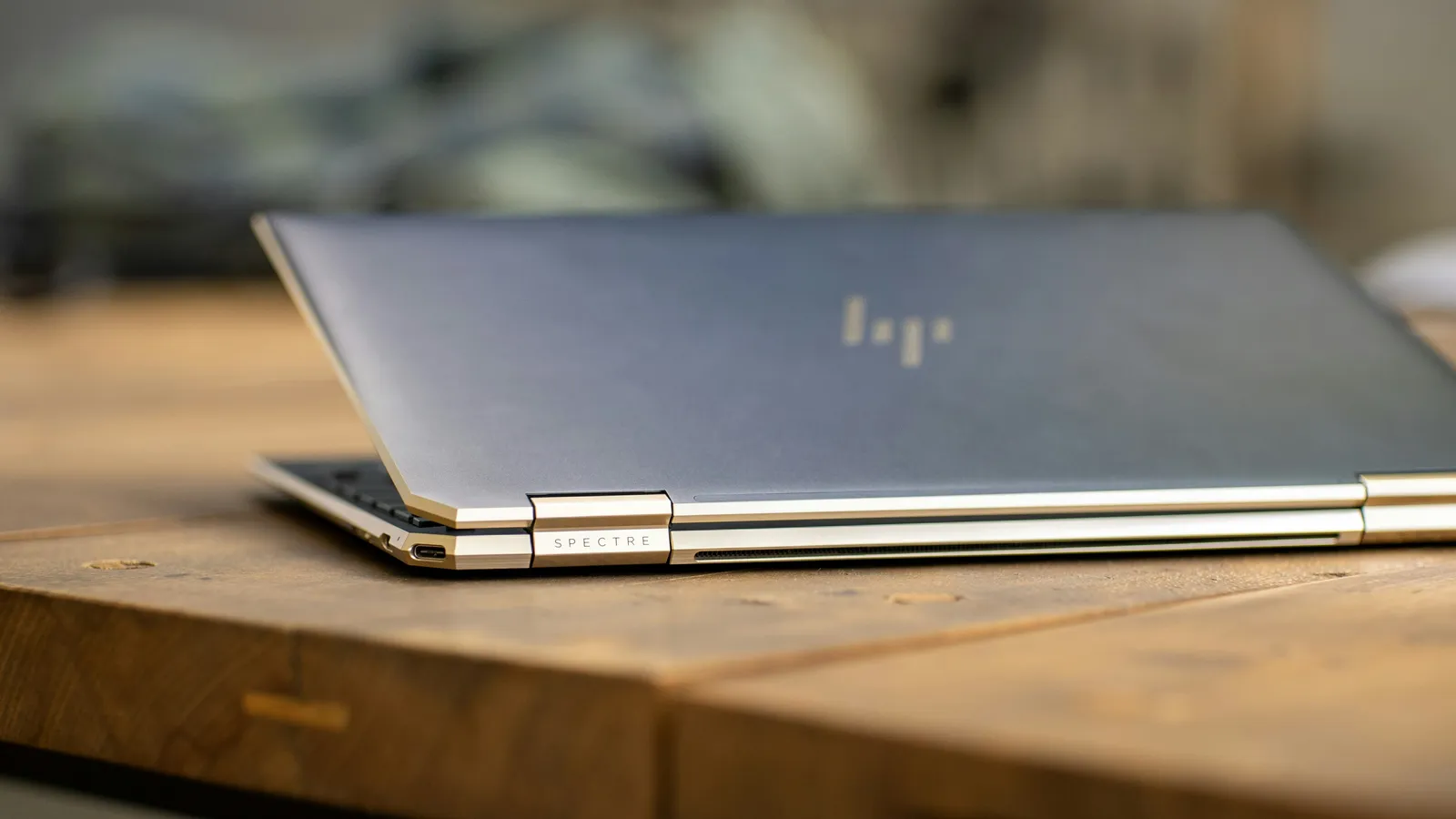
HP splits its range into families, and the split reflects real engineering decisions. Spectre and Envy are the thin consumer machines: metal shells, convertible hinges, pen support and very little empty space inside. Pavilion and Stream sit at the budget end, built to a price, with plastic housings and, on the cheapest units, soldered memory and slow eMMC storage instead of a proper SSD. EliteBook and ProBook are the business lines, designed for fleets, with published service manuals and part numbers behind them. Omen and Victus are the gaming machines, carrying discrete GPUs and the cooling load that comes with them.
Knowing the family answers most questions before the spec sheet does. A Pavilion that feels slow is often doing exactly what it was built to do. An EliteBook that feels slow usually has a cause worth finding.

What HP does well
Coverage across the whole market
Between those four families, HP covers the school machine, the office fleet unit, the thin convertible and the gaming laptop, with one parts and service ecosystem behind all of it. Few manufacturers cover that spread.
The business models are built to be opened
EliteBook and ProBook chassis are the ones we most often point people toward when they are shopping used. The frames are reinforced, the hinges tend to survive, the keyboards are good, and HP publishes disassembly steps and part numbers for them. A laptop with documented parts can still be fixed long after it stops being current.
Convertibles and pen input
HP has been consistent with the 360 degree hinge and active pen support across the Spectre and Envy range. If you take handwritten notes or sketch, the touch and digitizer work on these models is among the better implementations in Windows laptops.
Upgrade room where it counts
Plenty of mid-range and business HPs still put storage on a standard M.2 slot and memory in sockets. A larger SSD or a memory increase then stays a straightforward job instead of a reason to replace the machine, and those two changes do more for how a laptop feels in use than the processor generation it shipped with.
Where HP falls short
The thin models ask a lot for what they give
Top Spectre and Envy configurations are priced against Dell XPS and Lenovo ThinkPad equivalents, and they do not always win that comparison on value for the money. Thin has physical consequences too: fewer ports, memory soldered to the board on some configurations, and less room for a cooler to do its job.
Software you did not ask for
New HP consumer laptops arrive with a stack of utilities, trials and pop-up helpers. They take storage, they start with Windows, and they sit between you and the machine you paid for. Clearing them out, or reinstalling Windows cleanly, is the first thing worth doing on a new unit. If you would rather not do it yourself, that is what an OS reinstall is for.
Battery life varies more than the brand does
Lithium-ion cells lose capacity with charge cycles, age and heat, so every laptop battery is a consumable part. What differs between HP lines is where they start. Budget and thin consumer models carry smaller packs and work them harder, and their owners notice the drop sooner. On most HP laptops the pack is replaceable, and battery replacement is routine work on them.
Heat, and what it does to performance
The Omen and Victus gaming machines and the thinner Spectre models run into the same physics. Dust packs into the heatsink fins, thermal compound dries out, the processor and GPU hit their temperature limits, and the firmware slows them down to protect the hardware. You hear it as loud fans and feel it as a hot palm rest, with stutter in games and the occasional shutdown. Cleaning the fins and repasting returns the cooler to what it was designed to do. On a gaming laptop that is maintenance, not repair.
HP against Lenovo and Dell
Nobody buys a laptop in isolation. Lenovo’s ThinkPad line still has the better keyboard and the better record for surviving fleet life, and an IdeaPad generally gives you more machine for the money than a comparable Pavilion. Dell’s XPS competes directly with the Spectre and tends to lead on display quality, while Latitude and ProBook sit close enough that price and support terms decide it. HP’s real strengths in that company are the convertibles, the breadth of the range and the serviceability of the business models.
Windows 10 and Windows 11 on HP hardware
Most HP laptops sold recently either shipped with Windows 11 or meet its requirements, and the older ones are sitting on Windows 10. Windows 10 systems can still be serviced. Windows 11 is recommended on supported systems for ongoing security and support.
The practical issue on HP hardware is drivers. A feature update occasionally swaps a working audio, camera, touchpad or graphics driver for a generic one, and the laptop then behaves as though something has failed. HP’s own firmware and driver packages usually put it right. When it is not obvious whether the fault is software or hardware, separating the two is what a diagnostic is for.
Which HP suits which buyer
- Students and light users: a Pavilion with an SSD and enough memory. Skip the eMMC configurations.
- Office and business: ProBook or EliteBook, new or used. Sober, serviceable, easy to keep running.
- Photo and video work: the higher Spectre and Envy configurations, chosen on the display panel and the storage rather than the badge.
- Gamers: Omen or Victus, bought knowing that cooling is a maintenance item from day one.
Buying with the repair in mind
If you are choosing an HP now, a few checks save trouble later. Find out whether the memory is socketed or soldered. Confirm that storage sits on a standard M.2 slot. Read the panel specification, not just the screen size. See whether HP publishes a service manual for that exact model number, because that tells you how repairable the laptop will be once it is no longer new.
Whichever brand you land on, a mid-life SSD, more memory, a clean operating system install and a proper cleaning and repaste will usually get more out of a laptop than replacing it early would.